(Case study 07/11)
The FacEX App
Product design · Android and web development · Android app · Admin panel
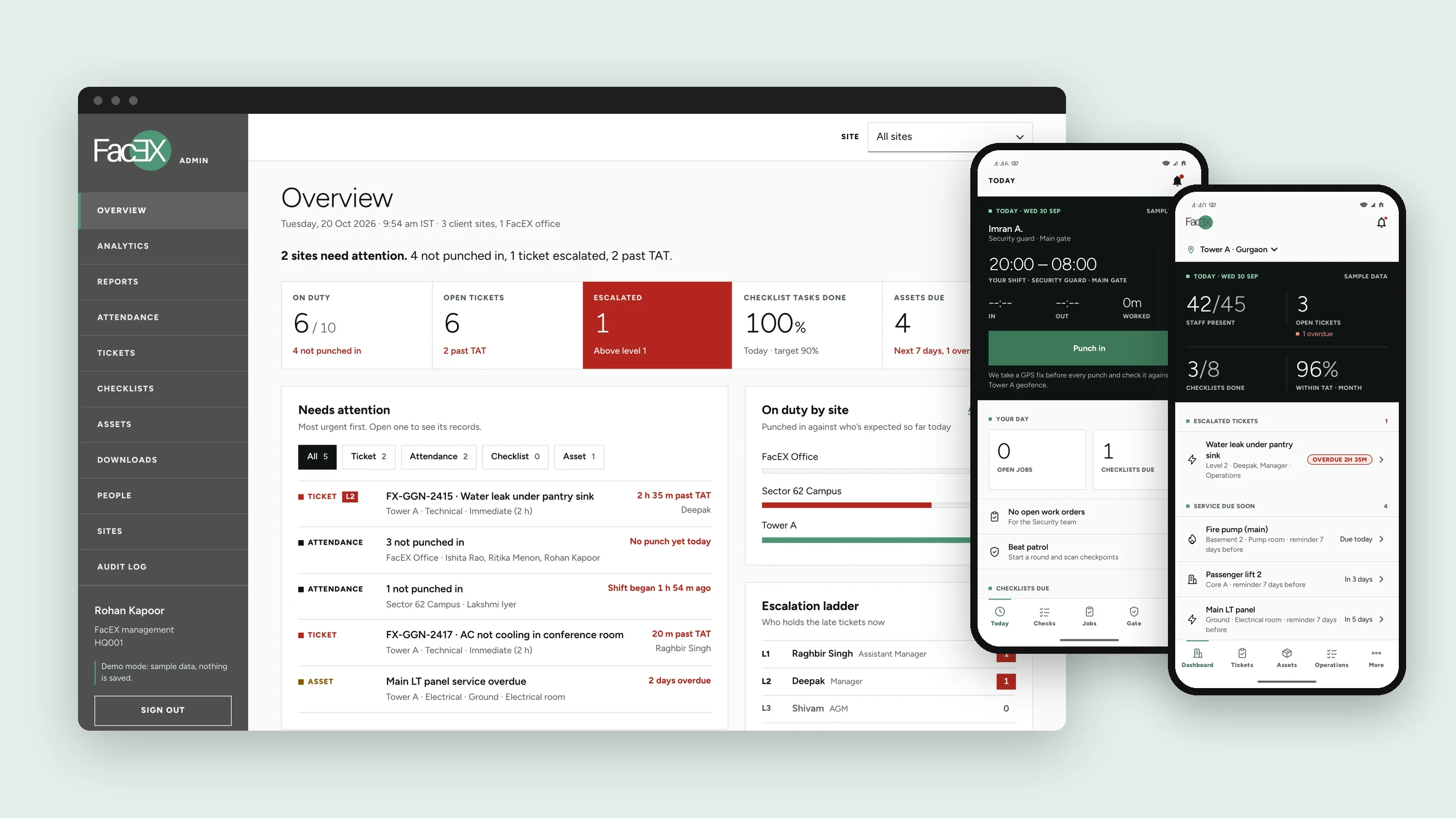
One app for the people who keep FacEX's buildings running, and a web panel for the few who watch over every site. I designed both, then taught myself to build them.
- Client
- FacEX, facility management
- Product
- Android app and web admin panel
- My role
- Product design and development, solo
- Built with
- Kotlin, Jetpack Compose, React, Firebase
FacEX sent a list. I turned it into roles.
The request was a features document: everything the app should do, from checklists and tickets to parking and pantry orders, in one flat list.
The first design question wasn't what each screen looks like. It was who each feature is for. Sorted by the people who use them (members in the building, FacEX staff on site and the client's admin), one list became three apps that overlap in the middle.
For launch we cut to the four that matter on day one: attendance, checklists, tickets and assets. The rest are built and switched off, ready to turn on.
- Smart checklists
- Tickets and escalation
- Attendance with GPS
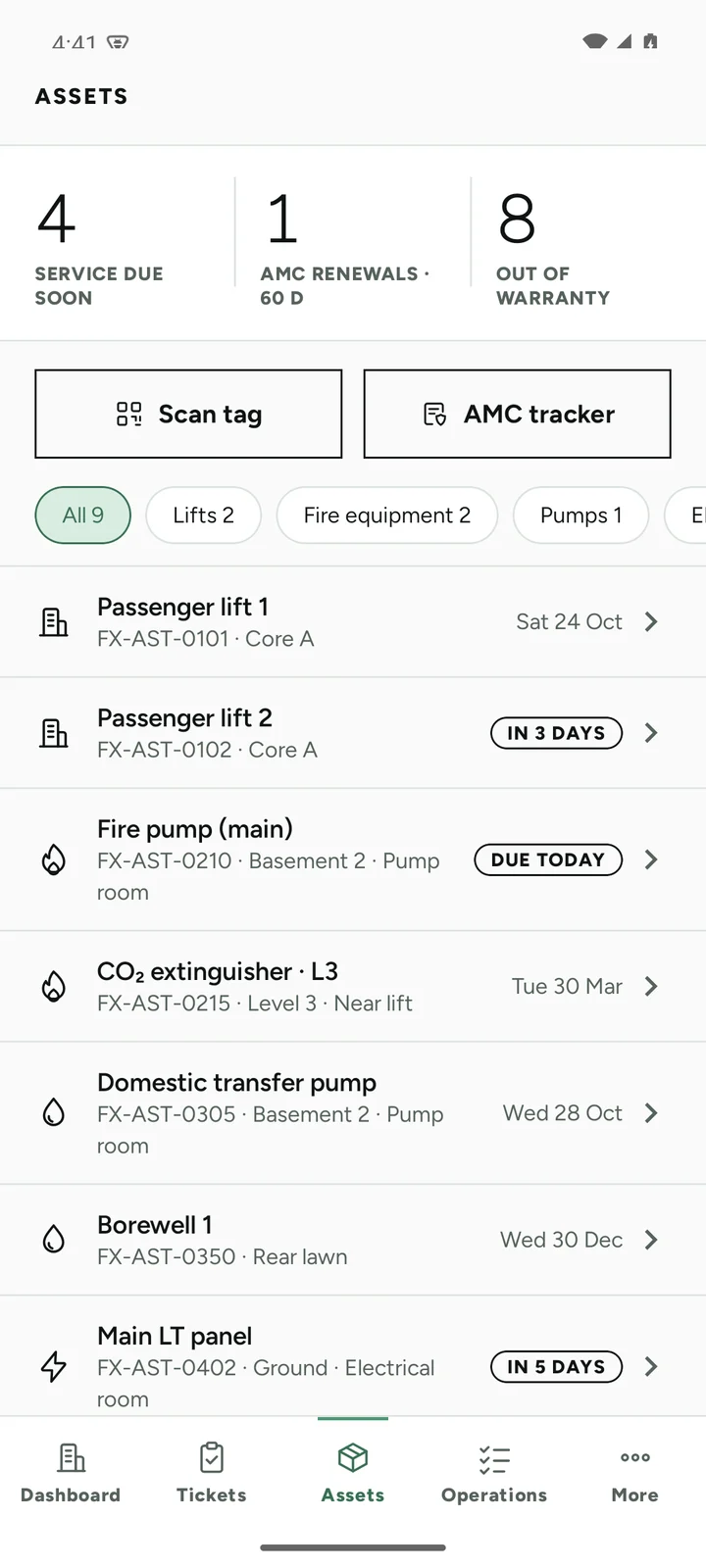
- Asset list
- AMC tracker
- Visitor management
- Inventory
- Procurement requests
- Mailroom
- Beat patrol
- Workspace seat map
- Pest control
- Parking
- Meeting rooms
- Pantry requests
- Work orders
- Events
- Announcements
- Partner with us
- Marketplace
- Perk coupons
- Reports
- 01
Product design
Sorted the brief into roles, set the design rules, and designed every screen of the app and the admin panel in the FacEX brand.
- 02
Development
Built the Android app, the React admin panel and the Firebase backend: data model, security rules, Excel import, tests and the demo mode.
Try it
Use the app, not a picture of it
Pick a role. The phone app is native Android, so I rebuilt its launch flows for the browser with the same design rules. The admin panel is the real web app, running in its demo mode.
Sample data only. What staff do in the app shows up on the client admin's dashboard. The web panel reads best on a laptop and resets when you reload.
Strategy
Three decisions shaped the whole app
The account decides what you see
Nobody picks a role at sign-in. An admin creates the person with an employee ID, a role and their sites, so a supervisor never wades through an admin's tools.
Every tick carries its time and place
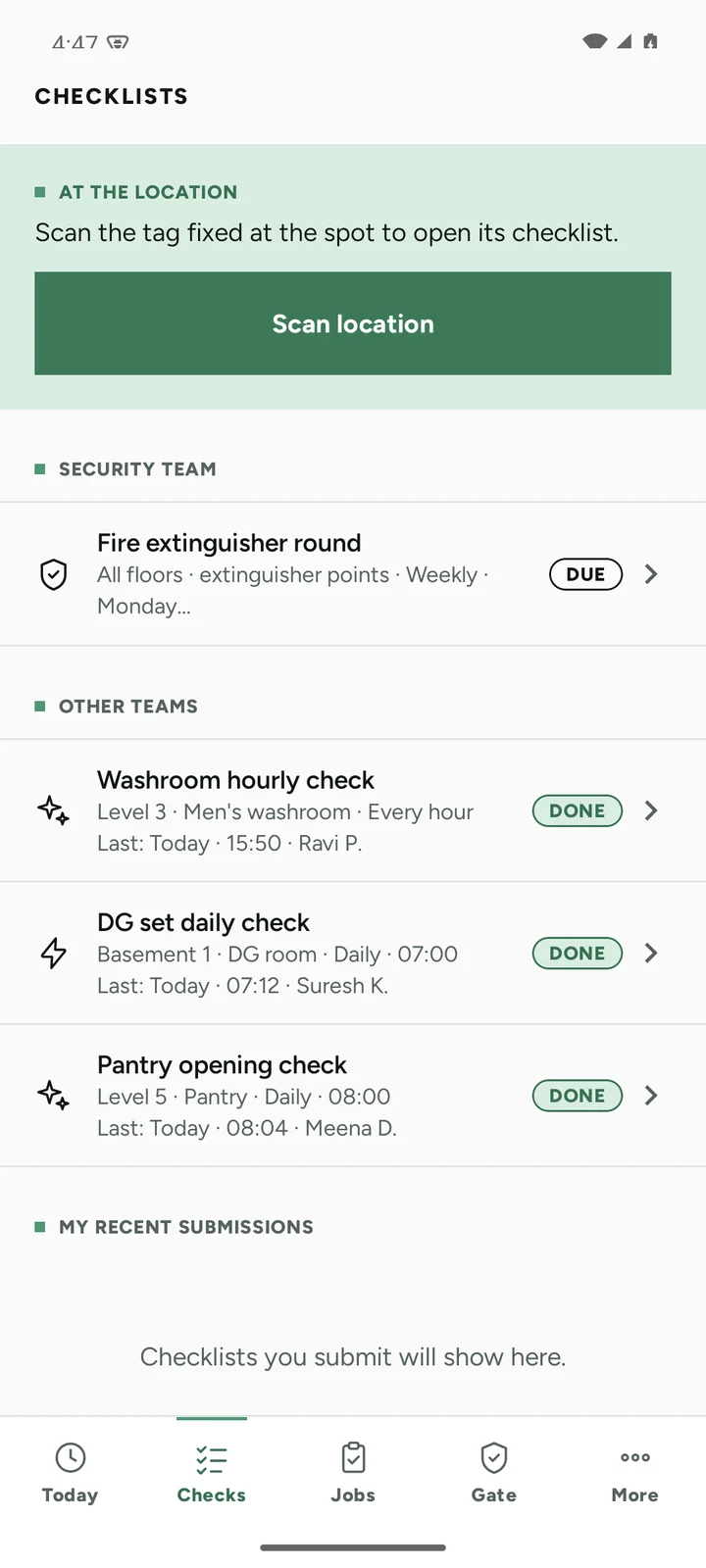
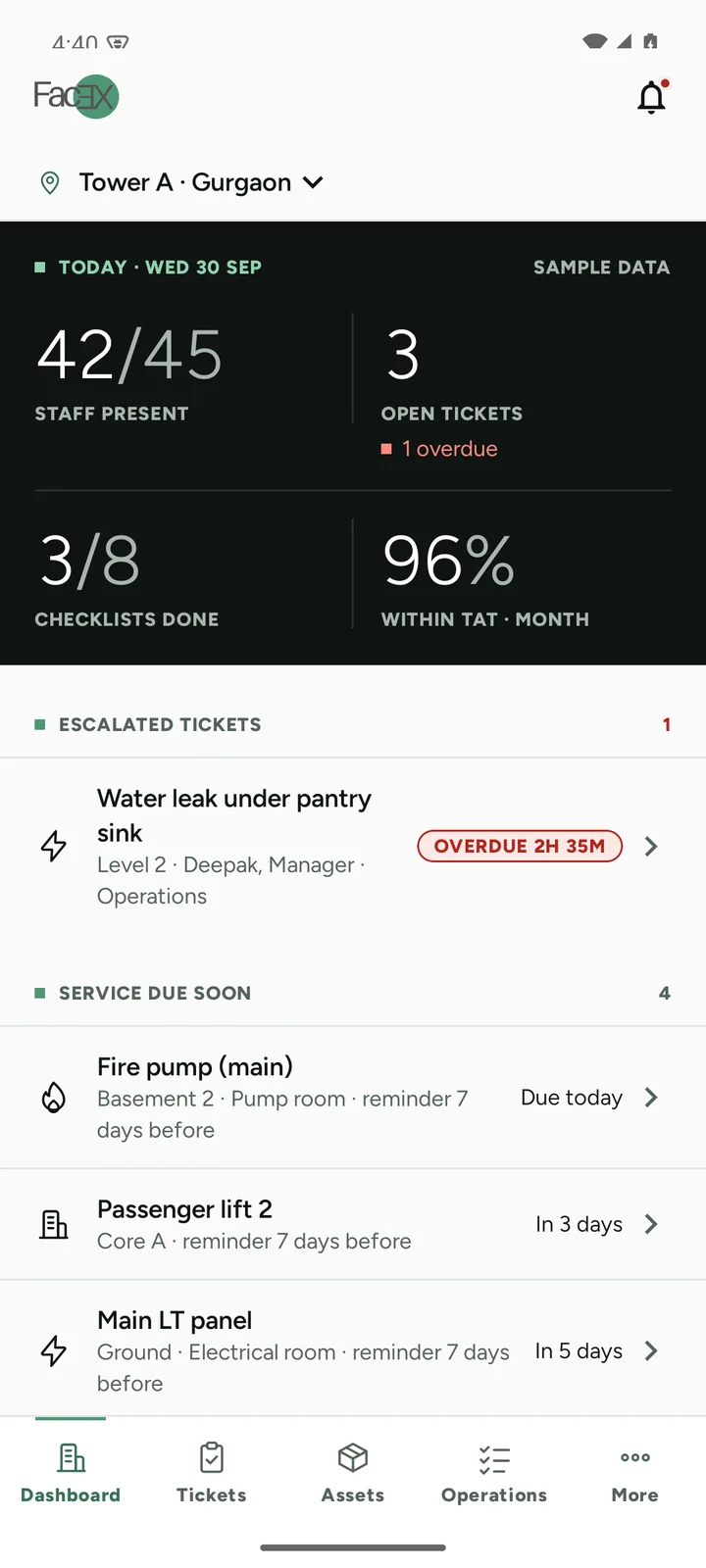
Checklists open by scanning the code fixed at the spot. Each ticked task records the second it was done and whether it was on site; some need a photo before they can be submitted.
Every ticket has a deadline
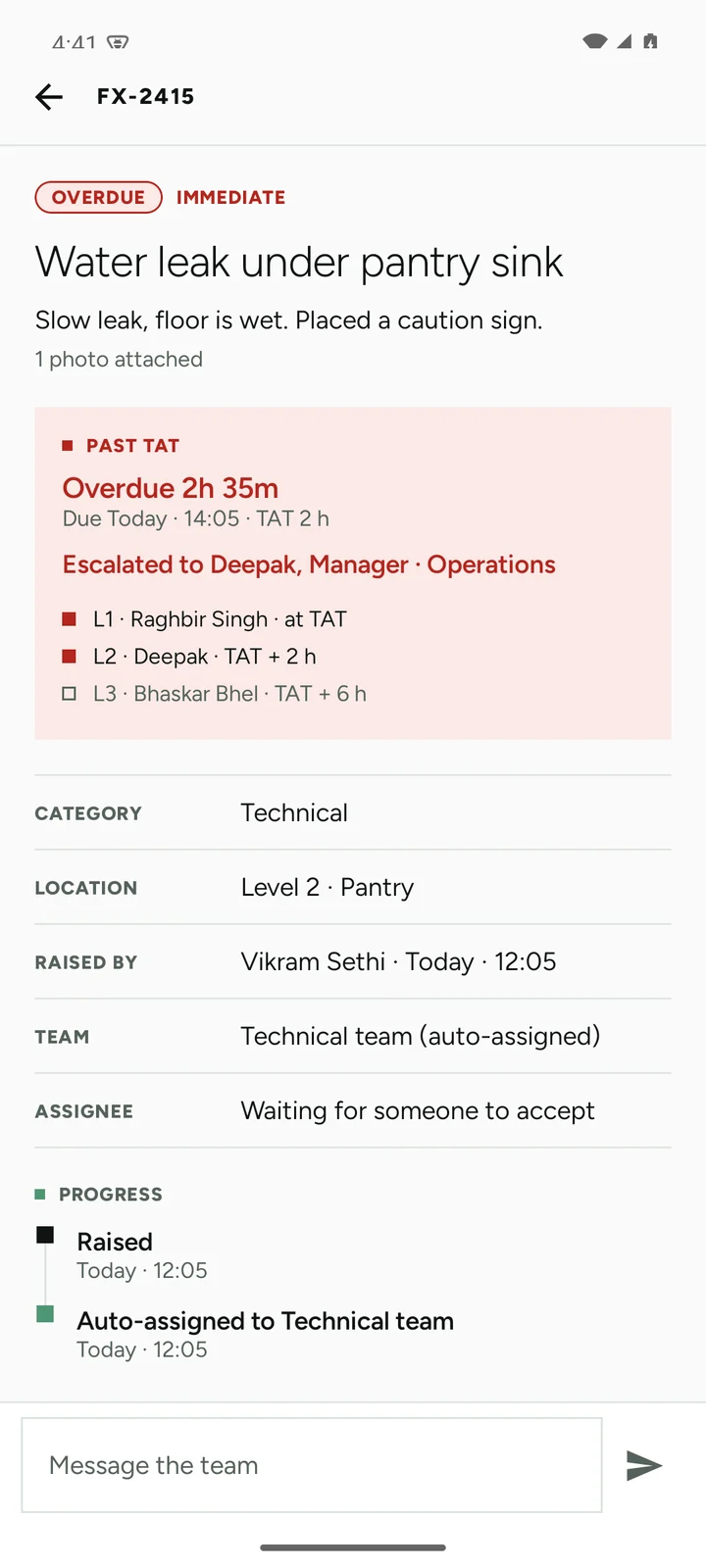
Urgency sets the turnaround: two hours for immediate, eight for important, seventy-two for the rest. Miss it and the ticket climbs the escalation ladder on its own.
Design theory
A tool for people at work, not people browsing
The person holding this phone is mid-shift: in a corridor, at a gate, in a plant room. They have seconds, not minutes. So the rules are about how fast the screen reads, and how much it can be trusted.
Exceptions first
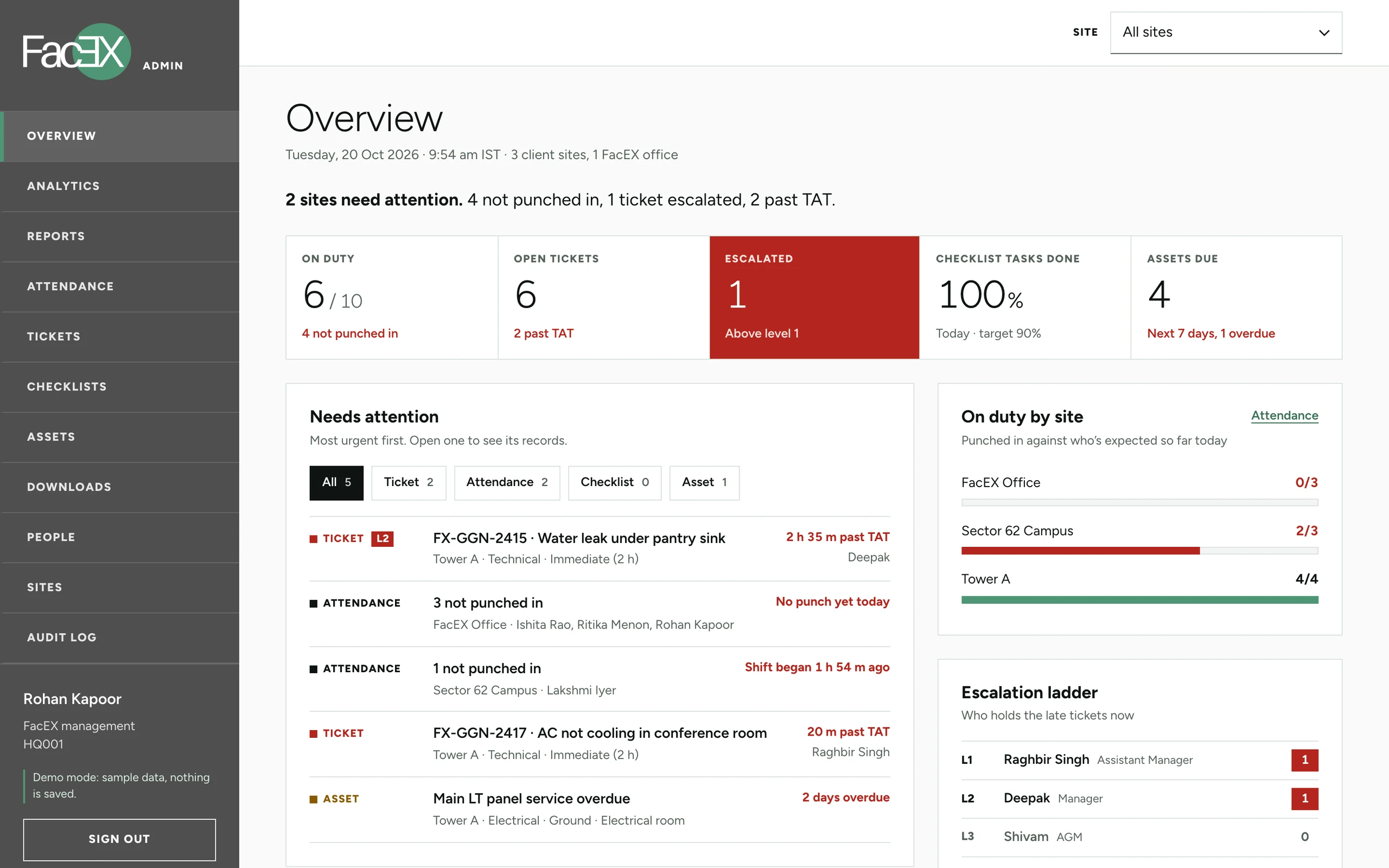
Dashboards open on what's wrong: overdue tickets, missed checks, staff not on site. What is fine stays quiet.
One green, one red
Green marks progress and the next action. Red means one thing only: a missed turnaround. If it's red, it's late.
Square fields, no shadows
The FacEX brand composes in squares, so cards, photos, inputs and buttons have no corners. Hairlines and colour separate surfaces, not elevation.
Round means status
Status pills are the only rounded shape in the app, so a state like Overdue or On site is recognised before it is read.
Light numbers, heavy labels
Big figures in a light weight with even-width digits; small, extra-bold labels, borrowed from the FacEX company profile.
Scan, don't type
Locations, checkpoints and assets open from the code fixed to them. Typing is the fallback when there is no camera.
Design system
One system across the profile, the site and the app
The tokens come straight from the FacEX brand, adapted for a phone held outdoors and indoors. The app ships Figtree (Light, Regular, SemiBold, ExtraBold) as an open-licence stand-in for Proxima Nova: swap the font files and nothing else changes.
If it's red, it's late.
Alert red is kept for overdue tickets and missed turnarounds only
On site
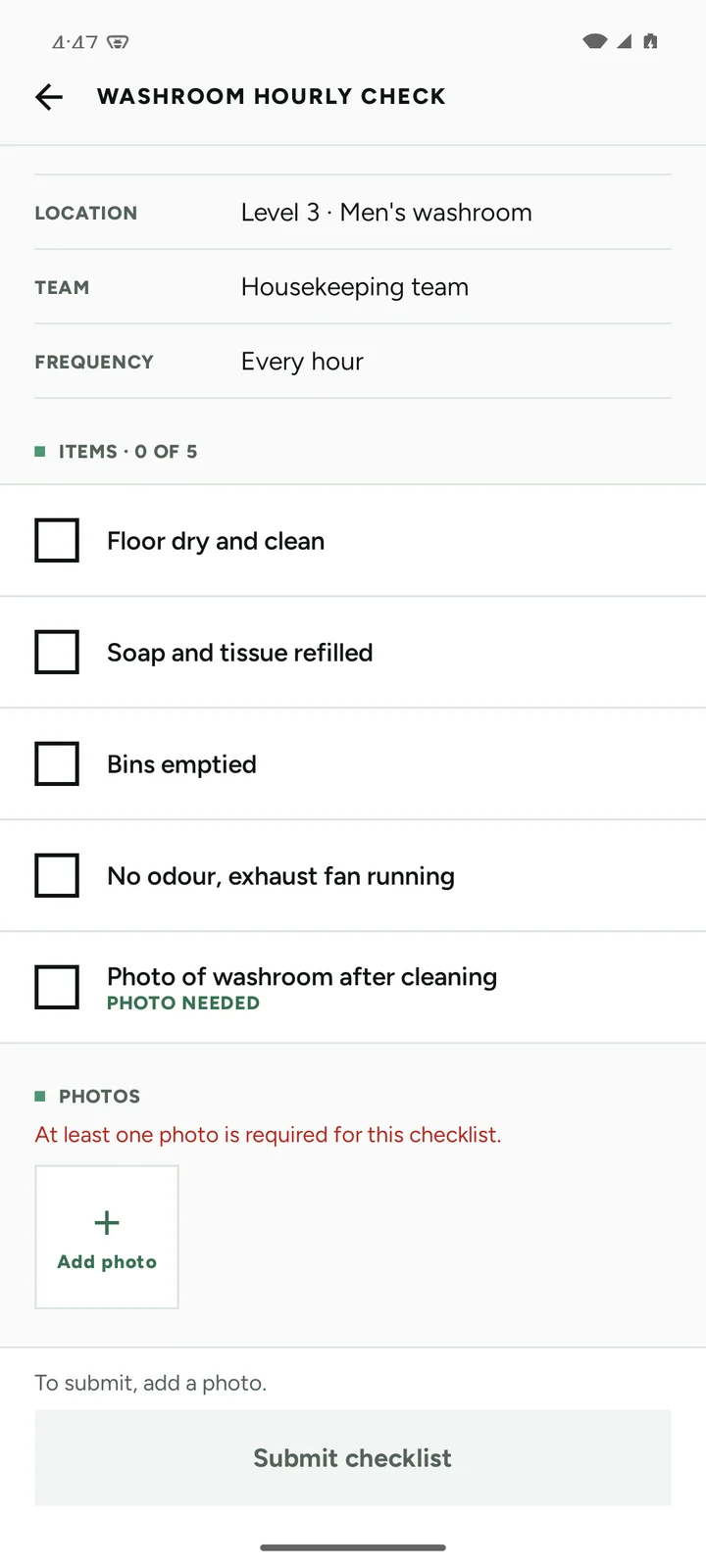
The staff app, built around one shift
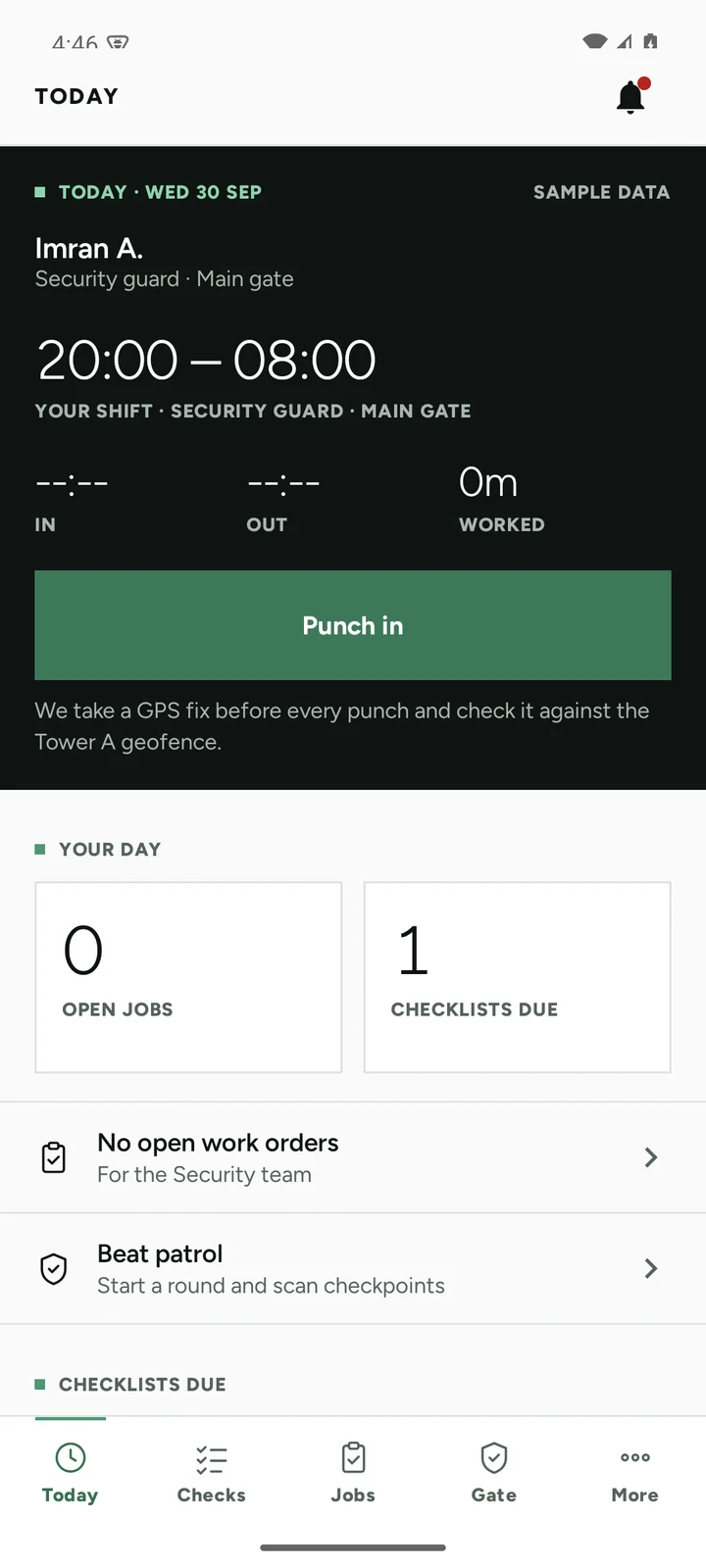
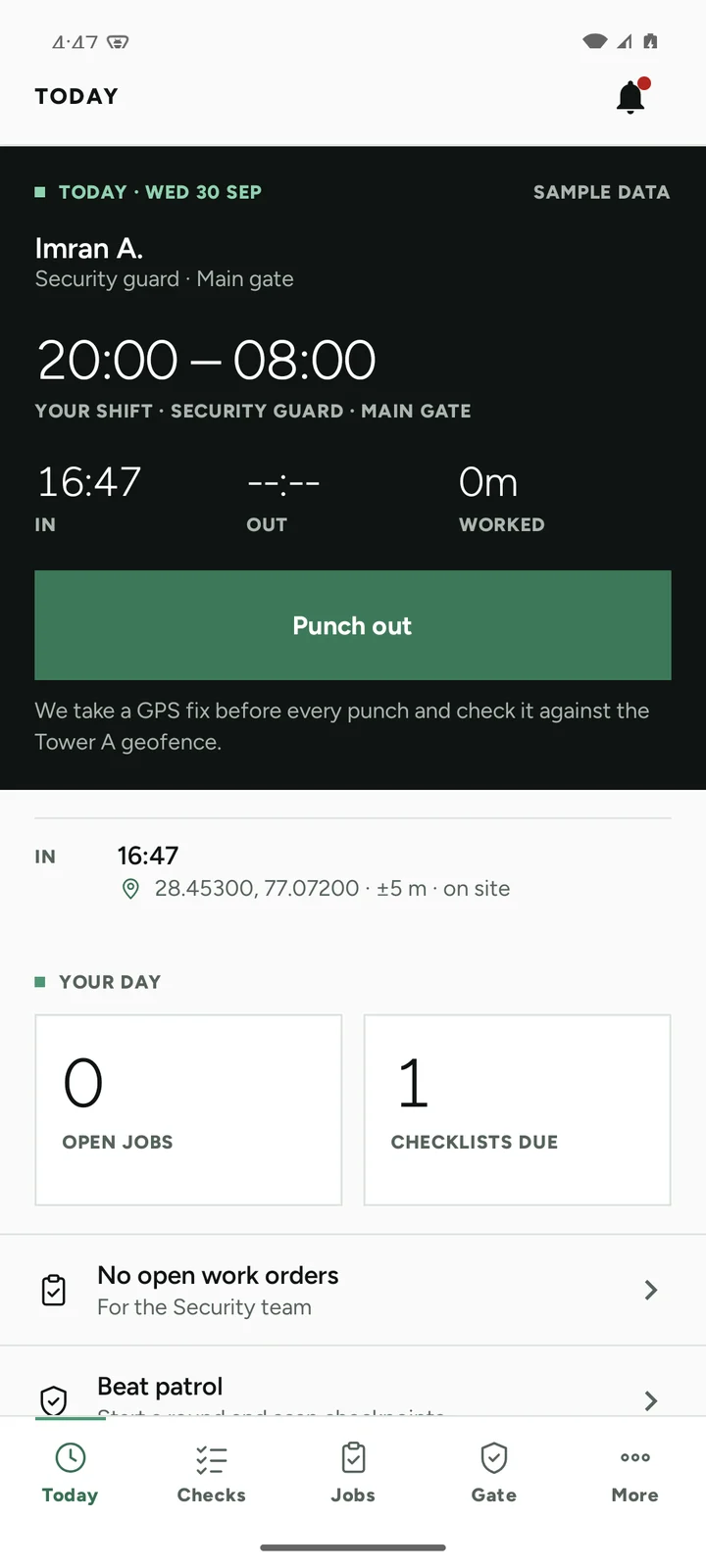
Guards, housekeeping and supervisors open the app to a dark panel with their shift on it, and a single green button.
Client admin
The site, live, exceptions first
The client's facility head doesn't need every tick. They need to know what's late, who's missing and what needs a service.
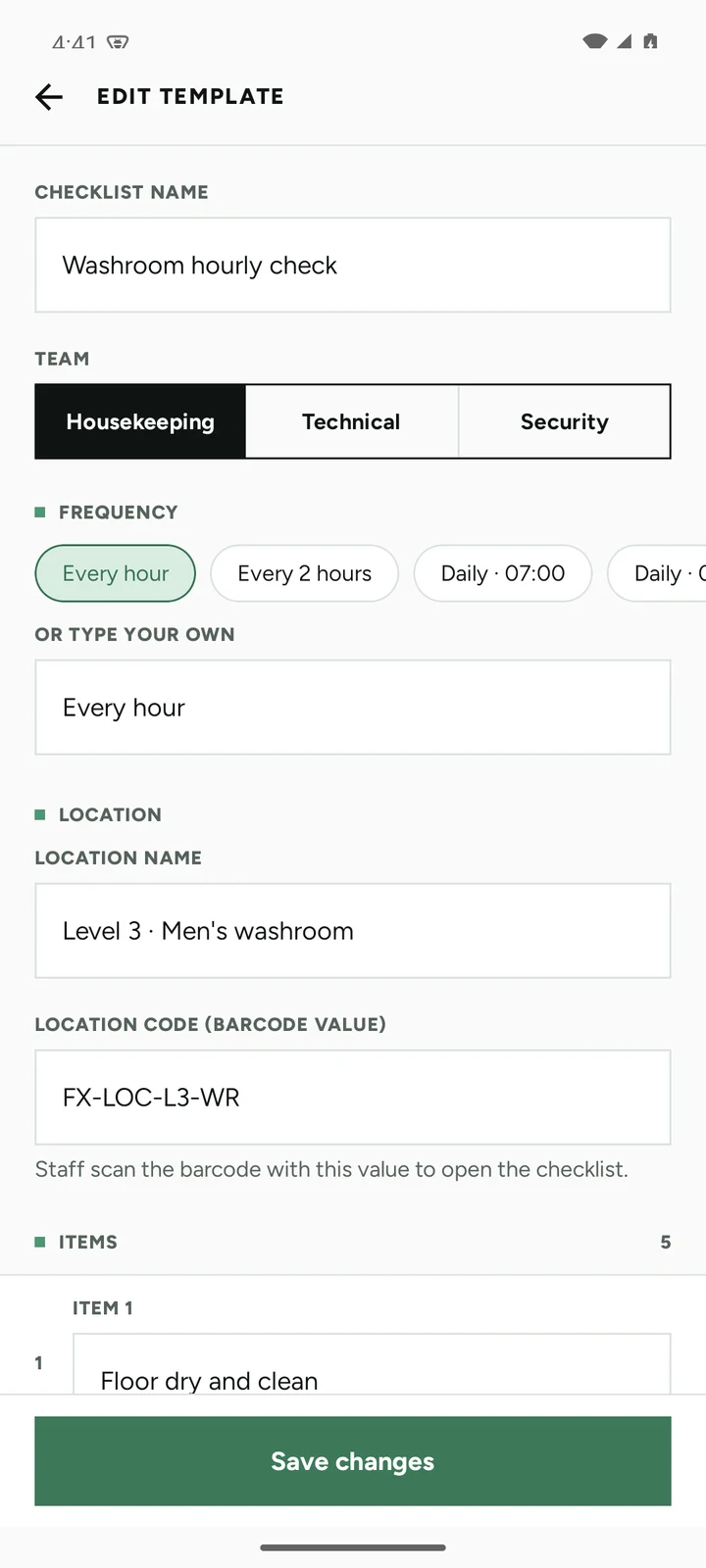
Parked modules
Designed, built and parked for later
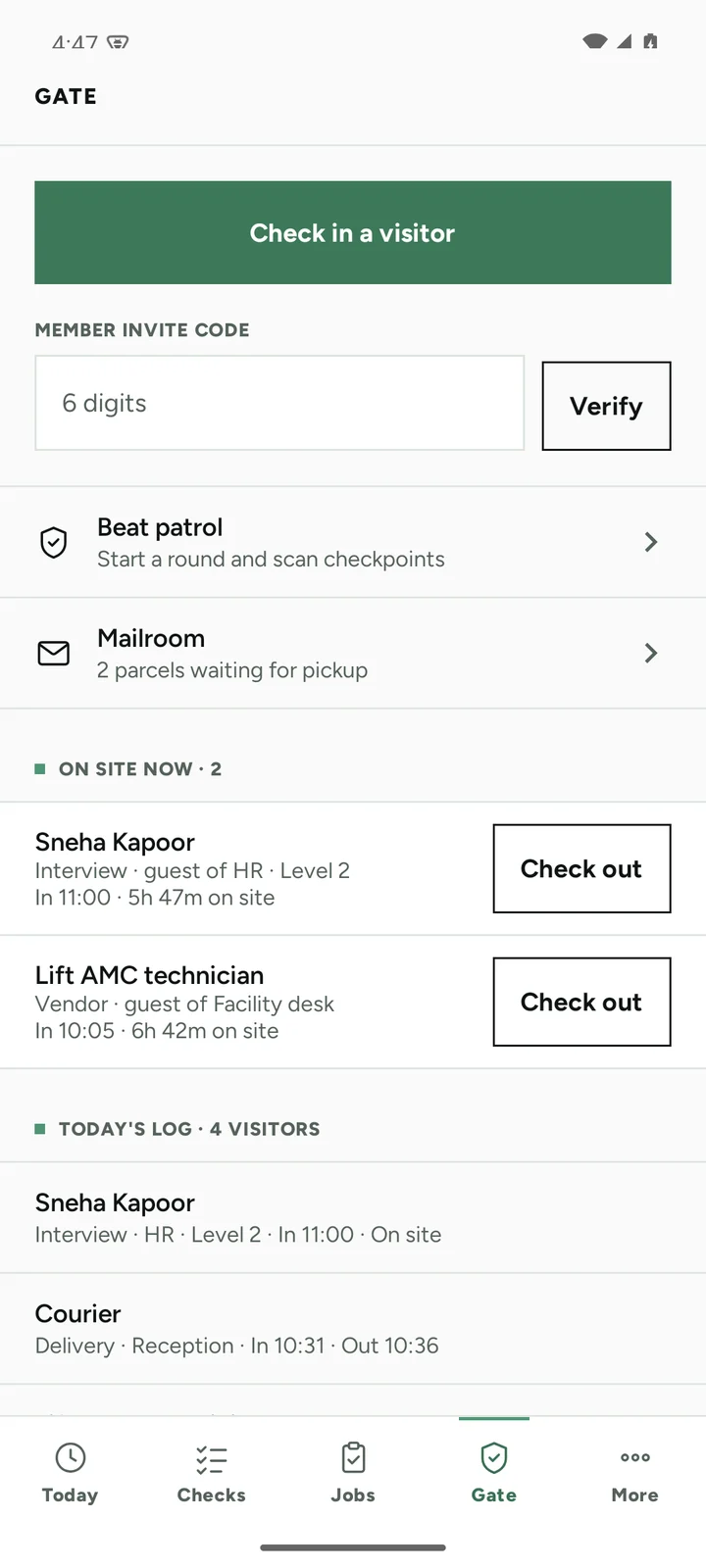
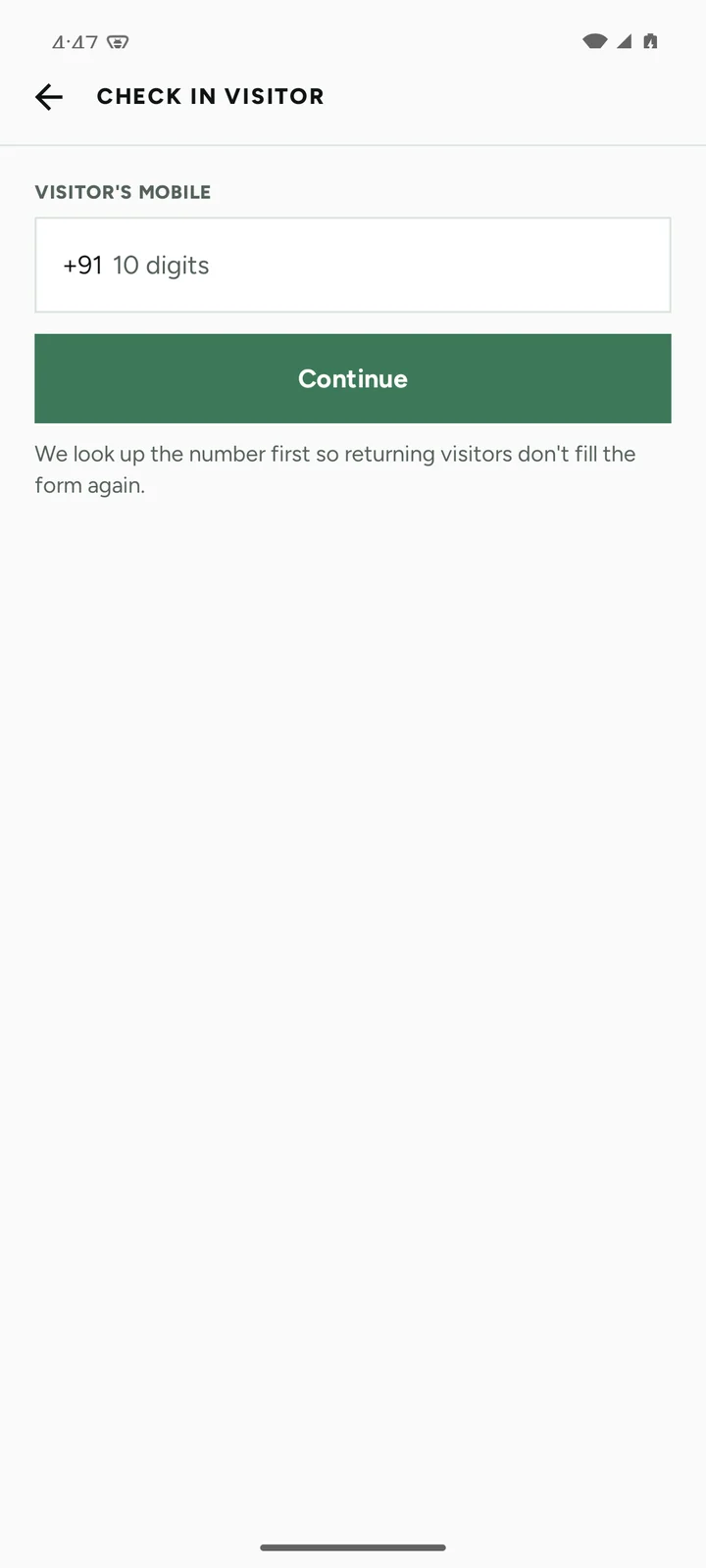
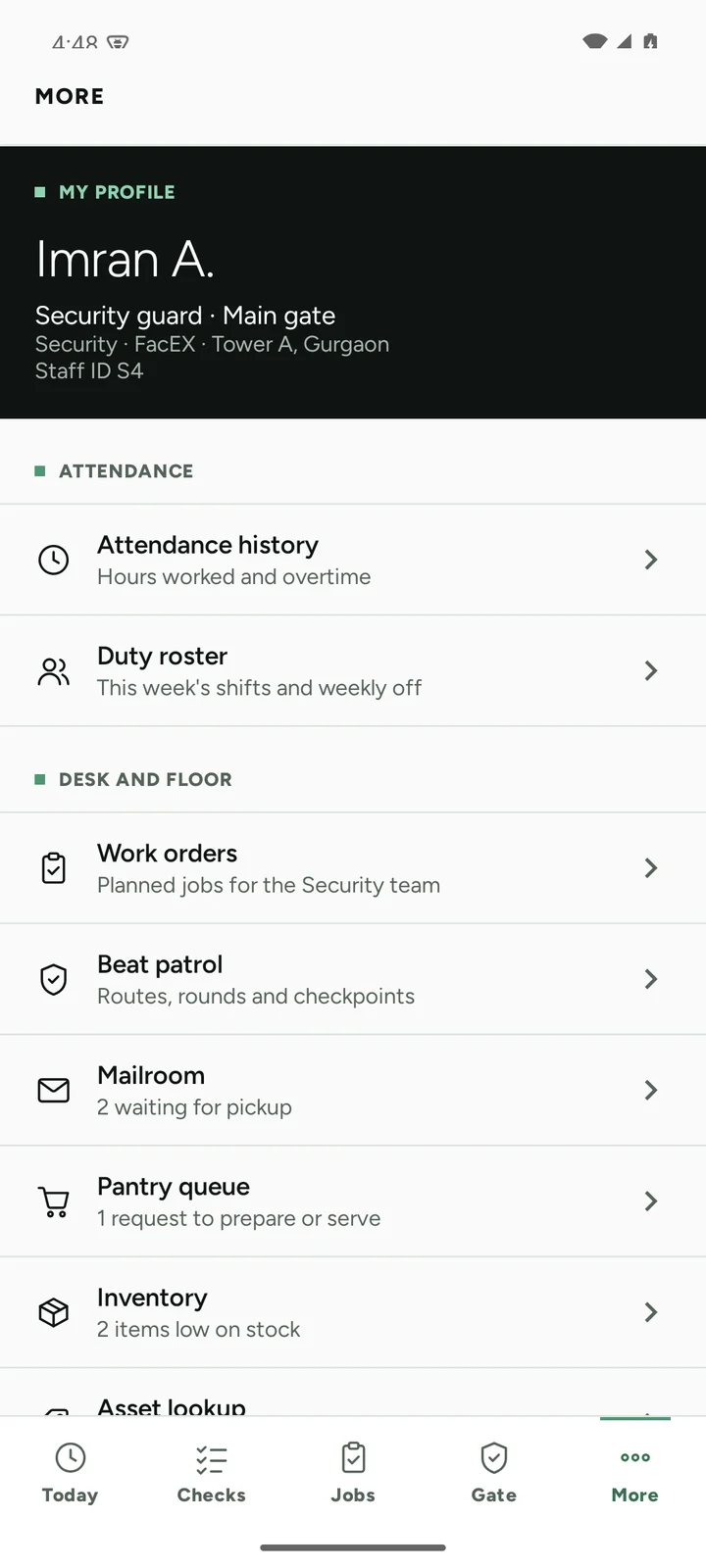
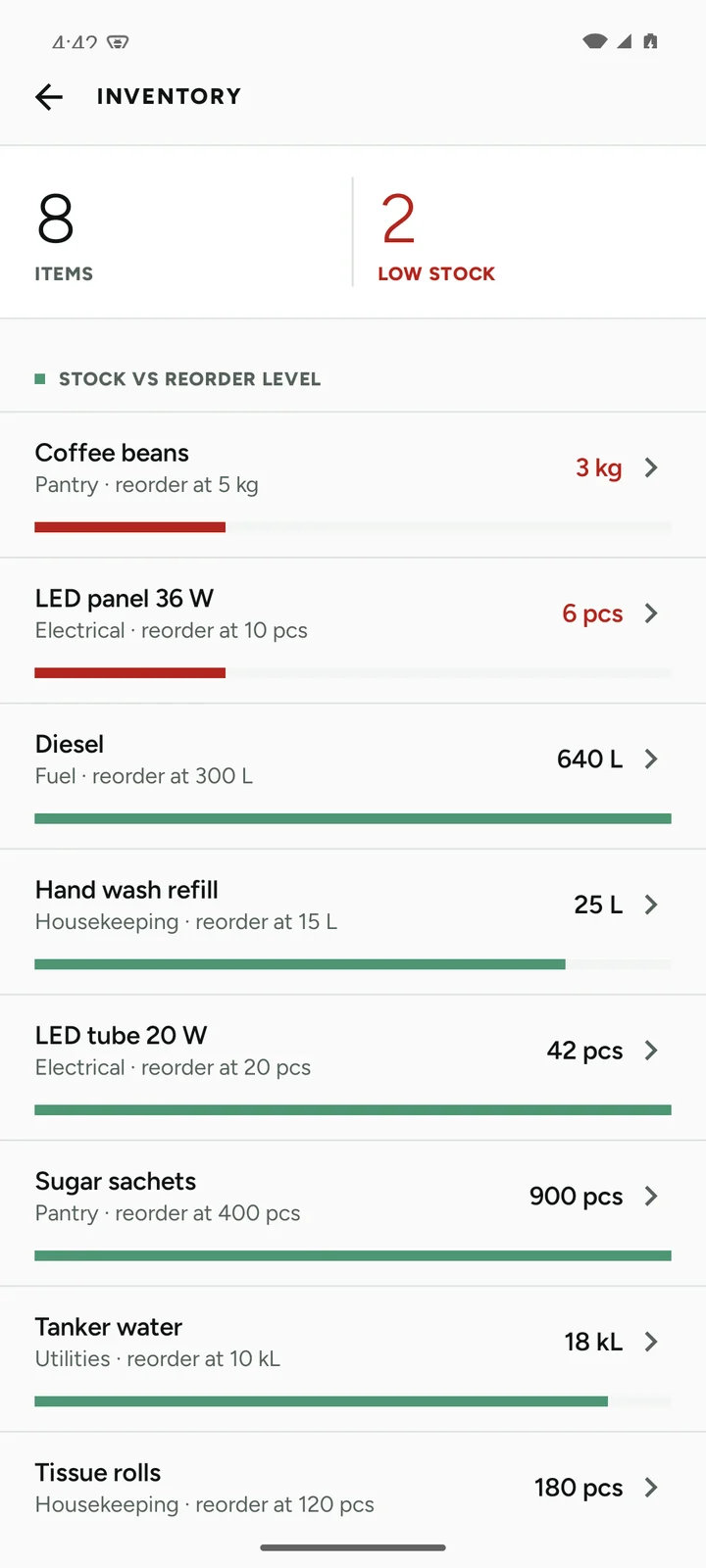
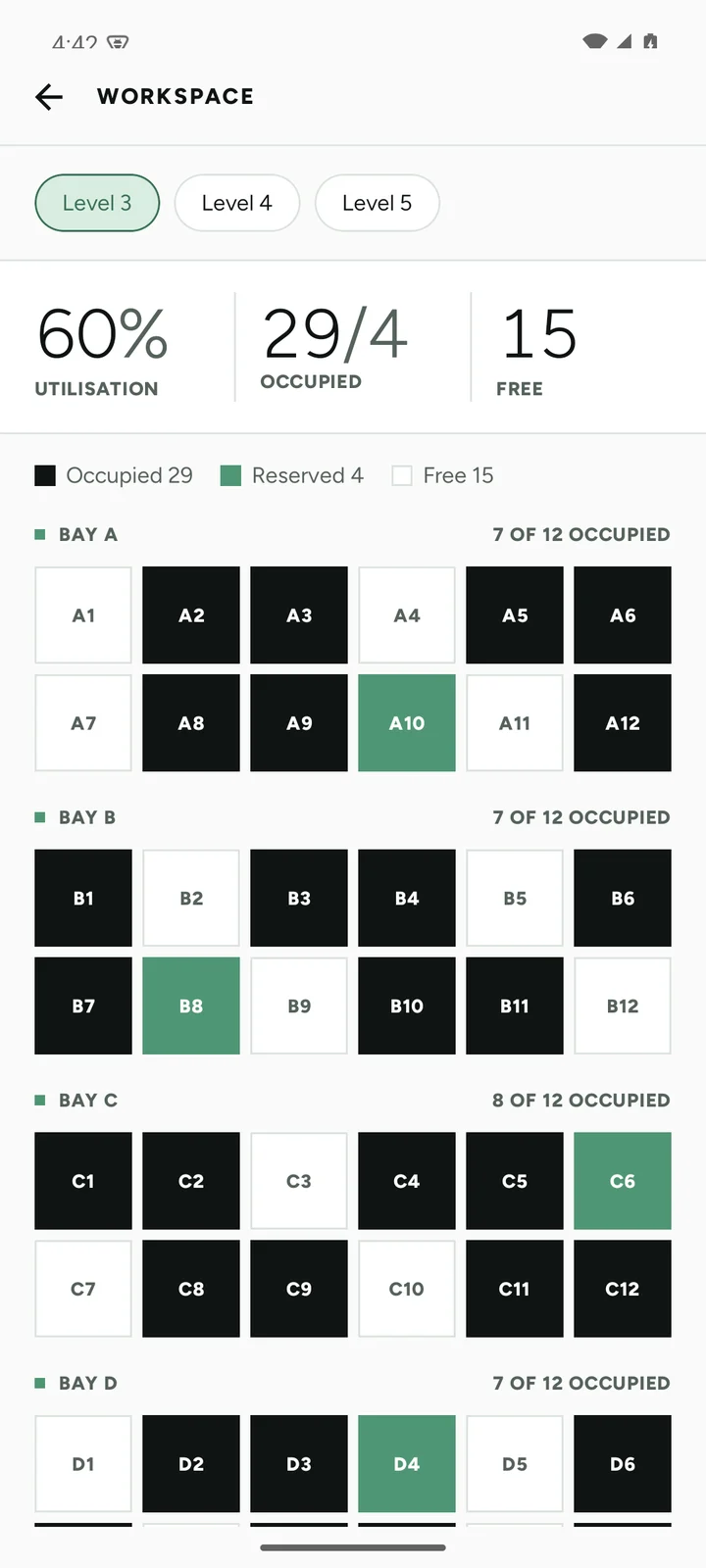
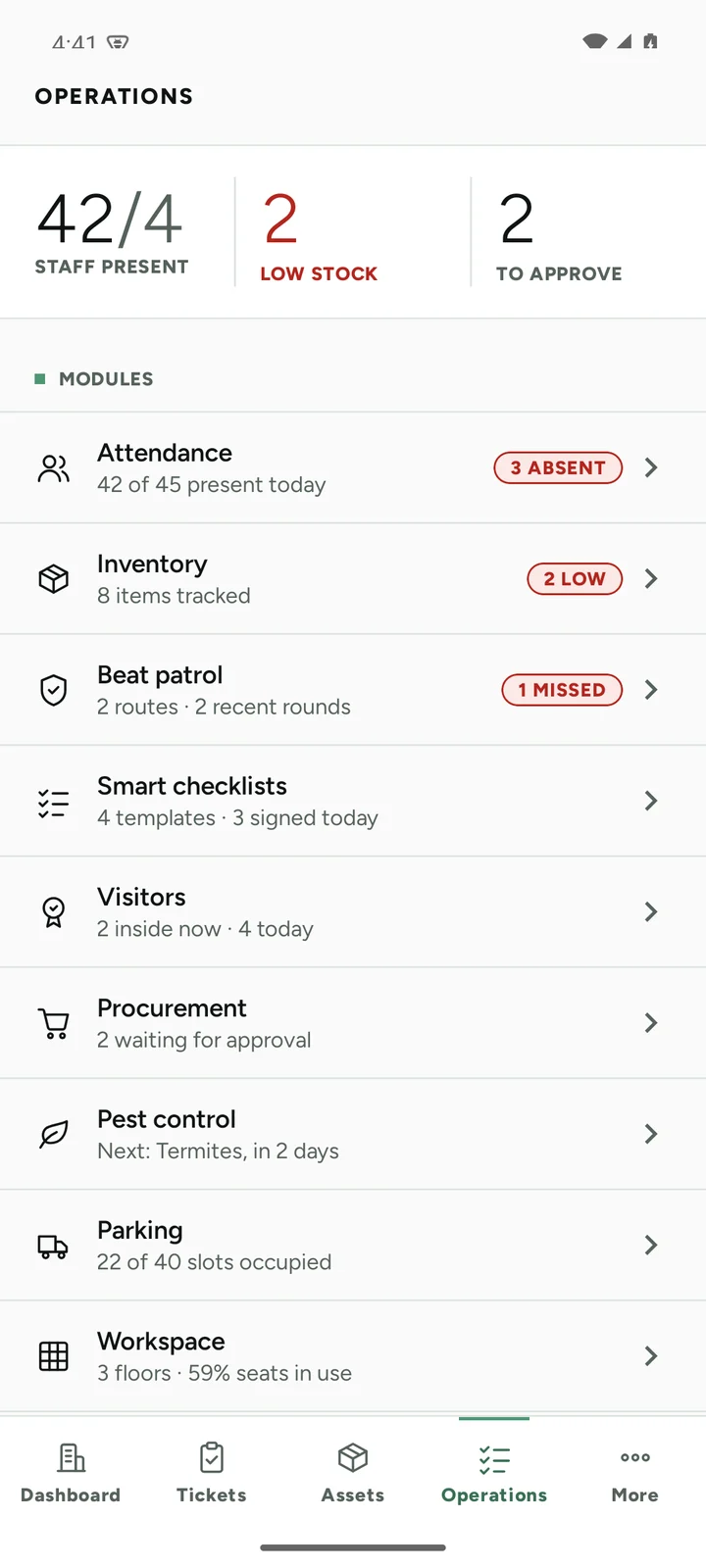
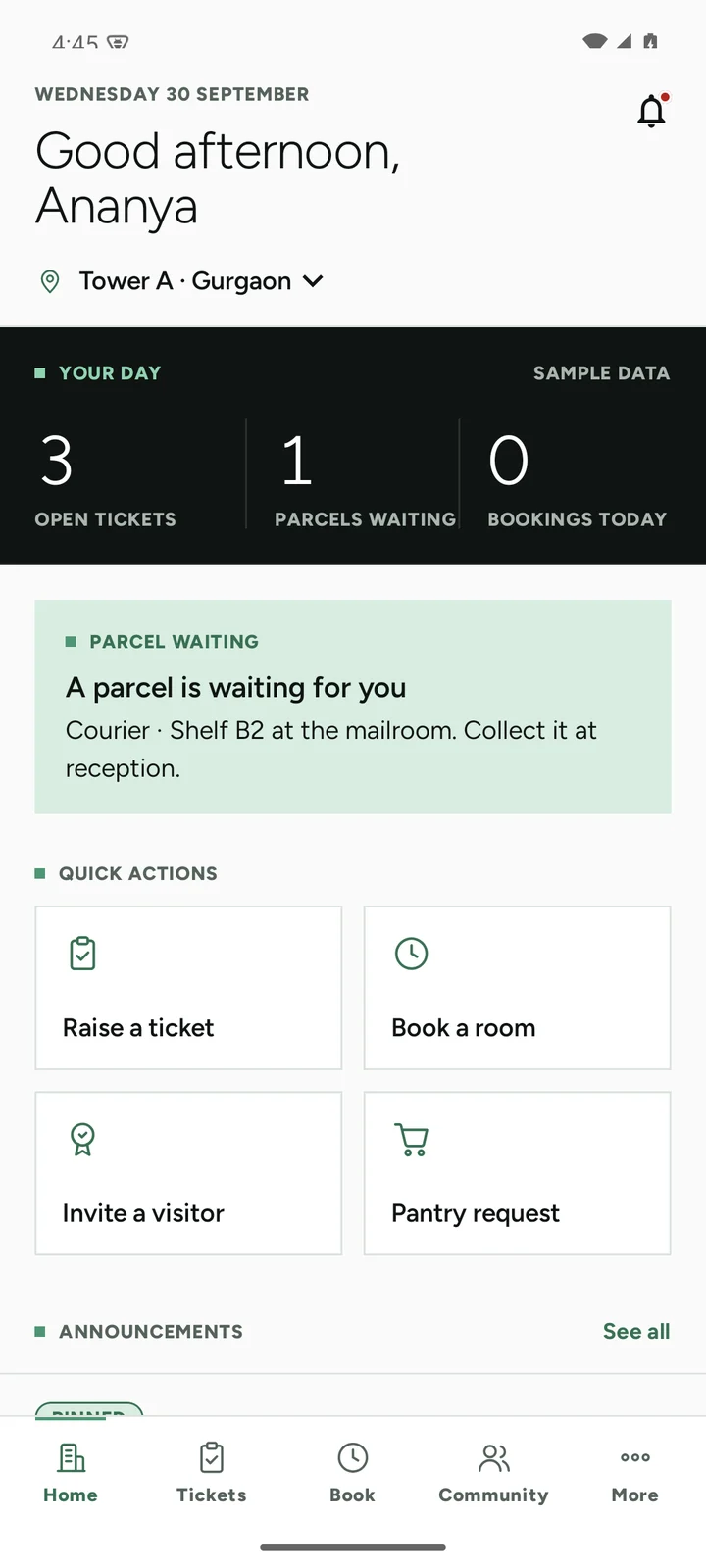
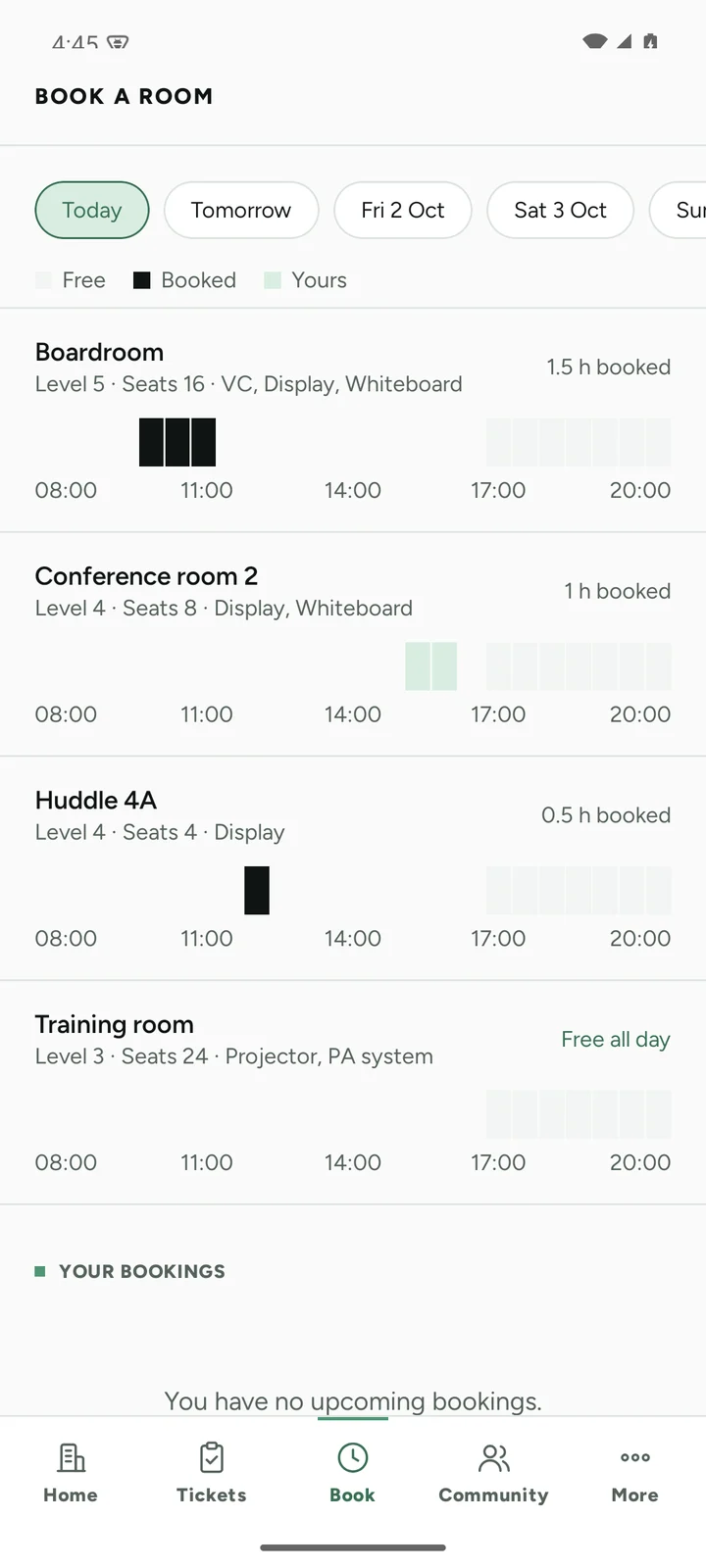
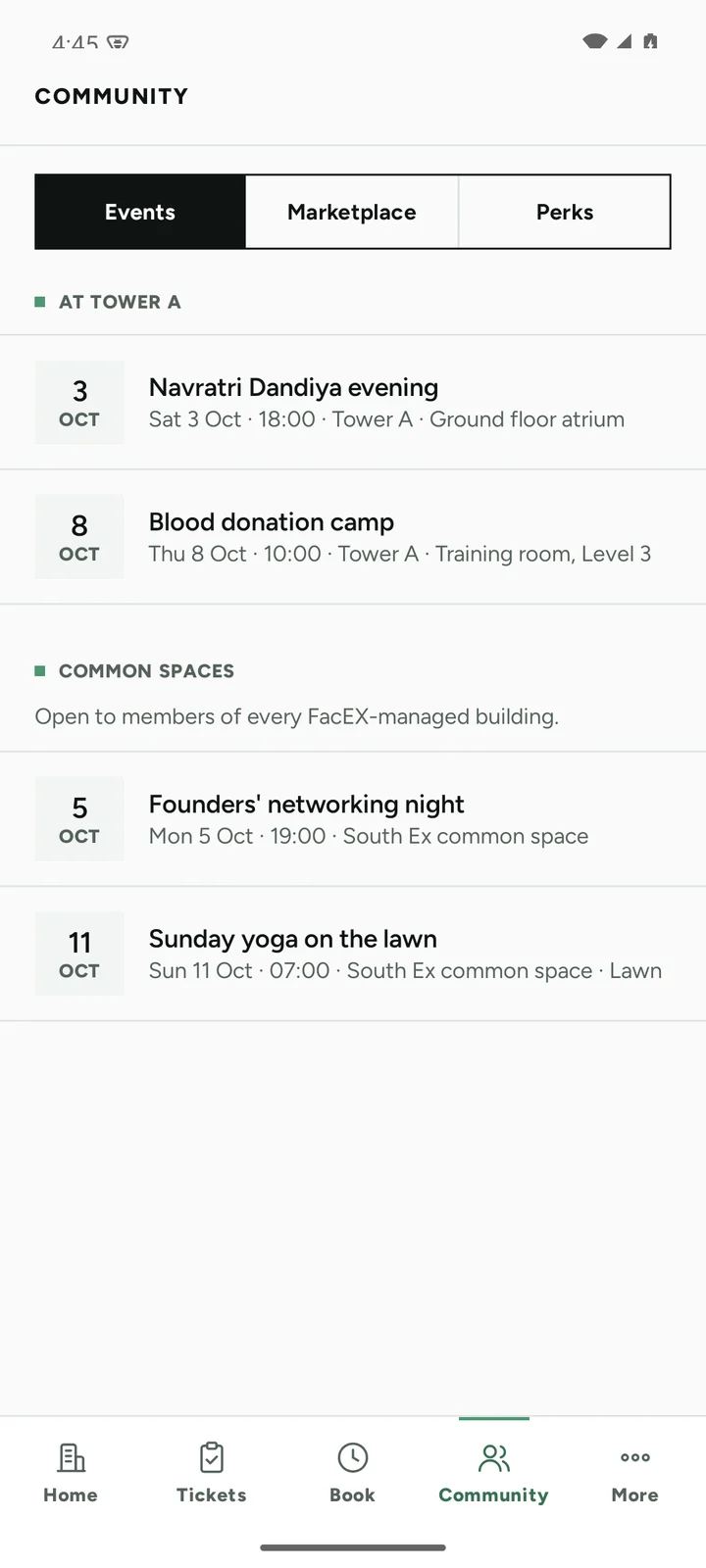
I designed and built the whole brief. FacEX wanted the core four first, so the rest is parked inside the app, ready to switch on: gate and visitors, desk-and-floor tools, inventory, workspace, operations and the member app.
Each module keeps its screens and its data code. Turning it on is one setting in the app and its database rules.
Admin panel
The web side, for the few who need it
Everyone has the app. Only three roles can have the web panel too, and only if FacEX management switches their web access on. It starts off, and the database rules check it as well as the screens.
FacEX management
Every site at once. Adds buildings, creates people, and decides who gets web access. The only role that can change it.
- Sees: every site, every page
Client admin
Their own sites only. Sets up checklists and assets, follows up late tickets, and creates supervisors and community managers.
- Sees: their sites, no Sites page
Analyst
Every site, but can't change anything. No add, edit or import buttons, and no audit log. Mostly lives on Downloads.
- Sees: everything, read only
Panel structure
Watch, then set up
The menu reads top to bottom in the order of a working day: what needs attention, what happened on site, then the set-up pages most people open once a month. The site picker at the top filters every page at once.
What happened
Every role
- OverviewWhat needs attention first, across your sites
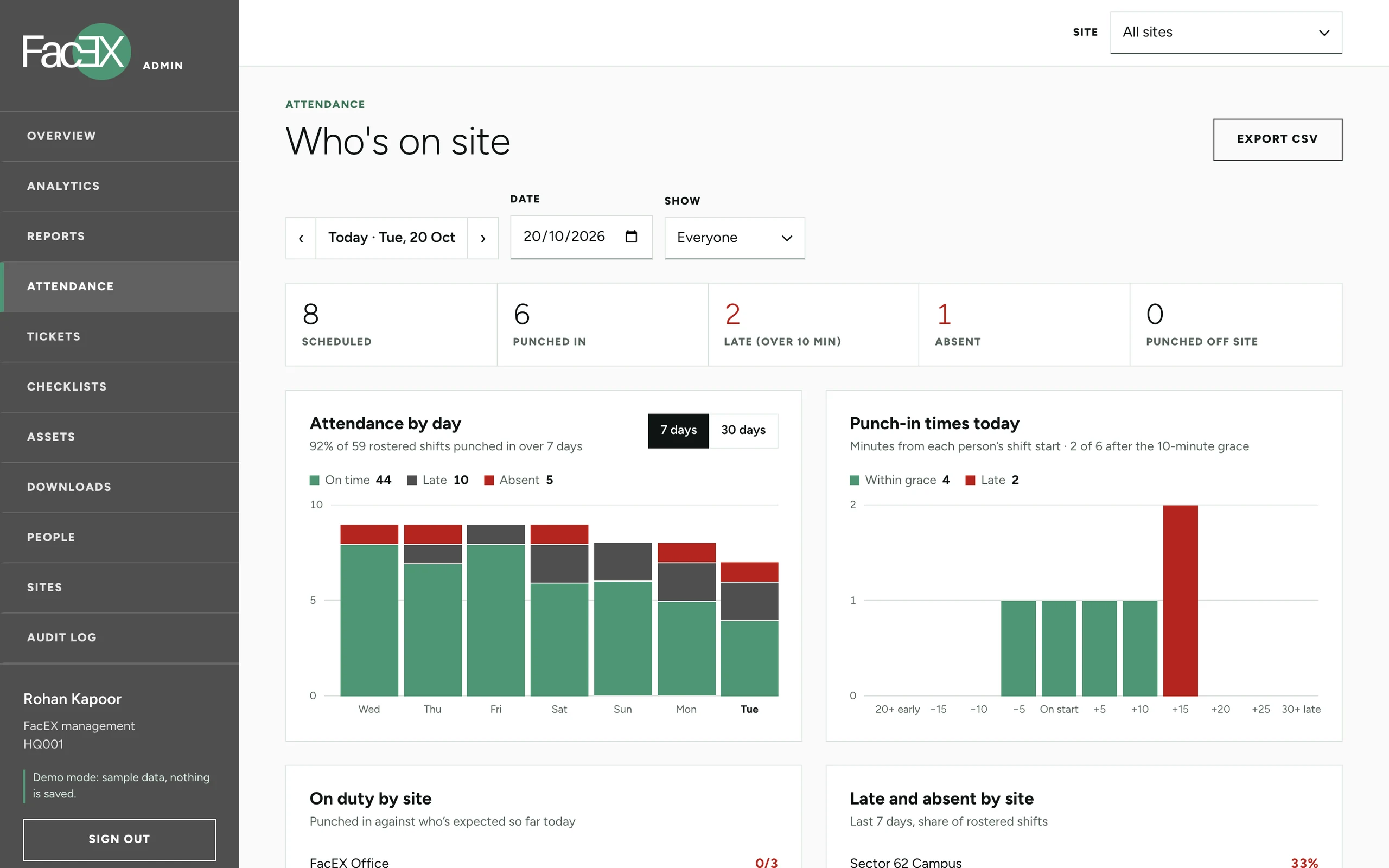
- AttendanceWho is on site, late or absent, by day
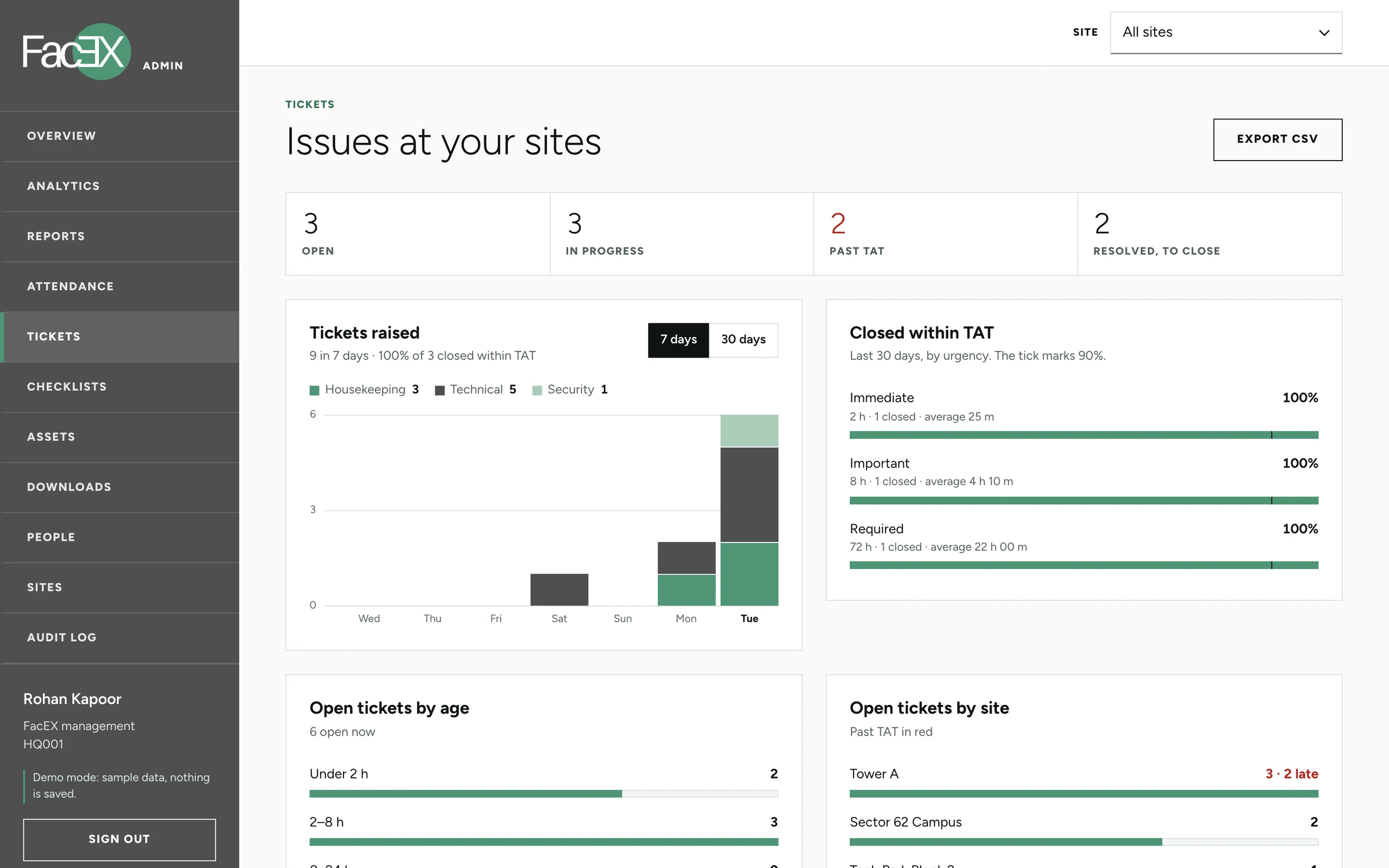
- TicketsEvery ticket, its timeline and escalation level
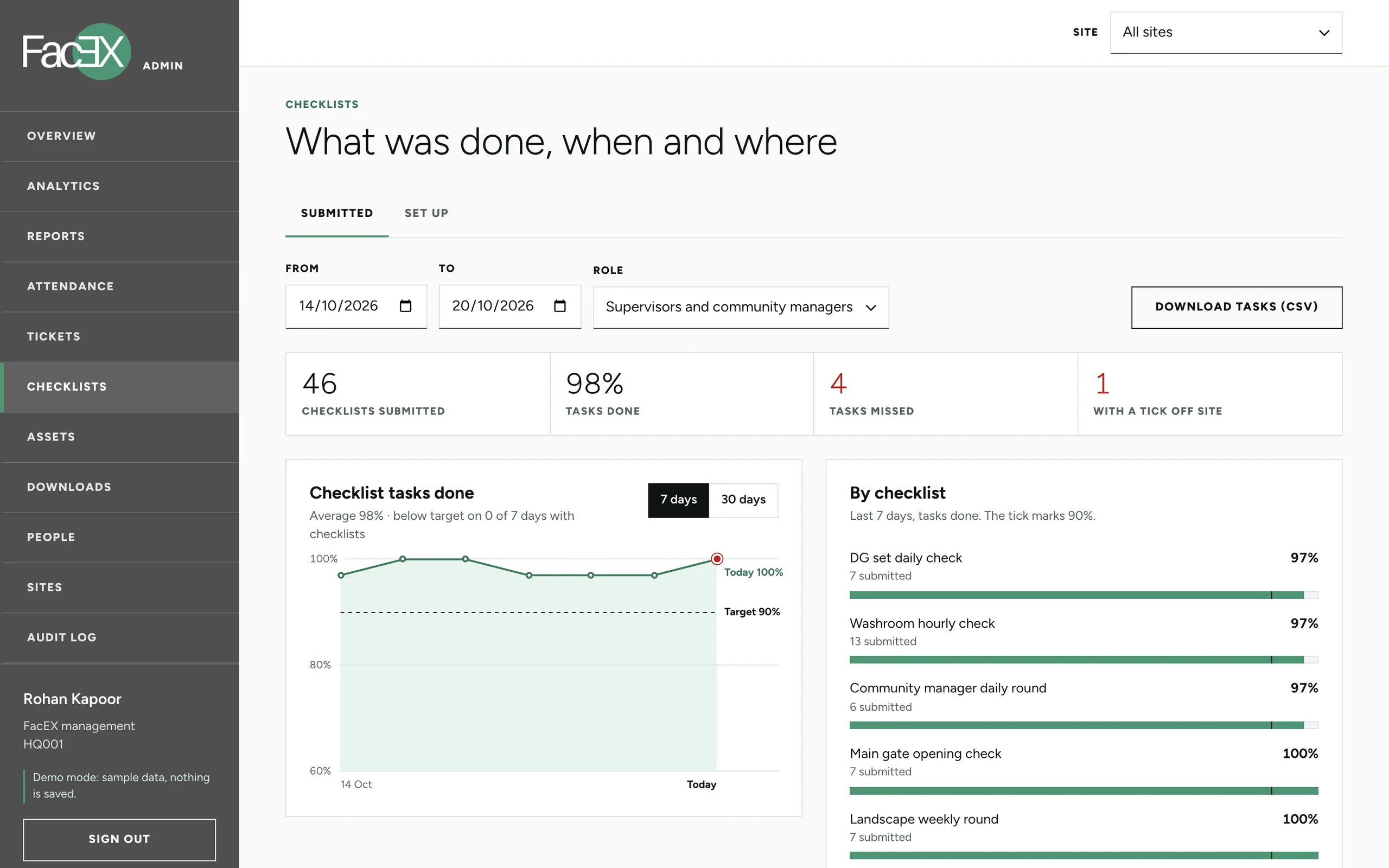
- ChecklistsEach task, the second it was ticked and where
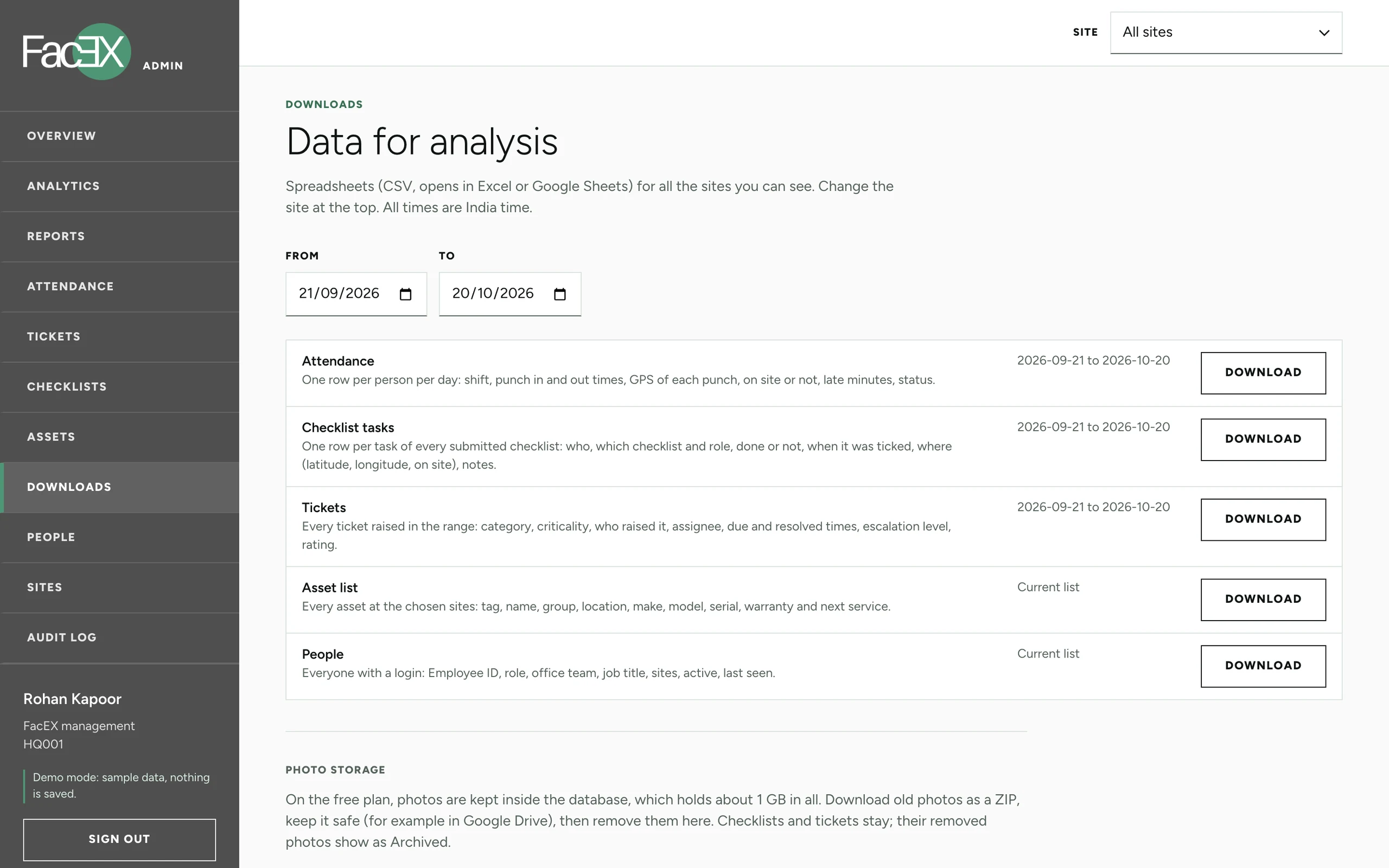
- DownloadsAttendance, tasks, tickets, assets and people as CSV
Set up
Management and client admins
- Checklist set-upEach site's checklists, edited or importedClient admin
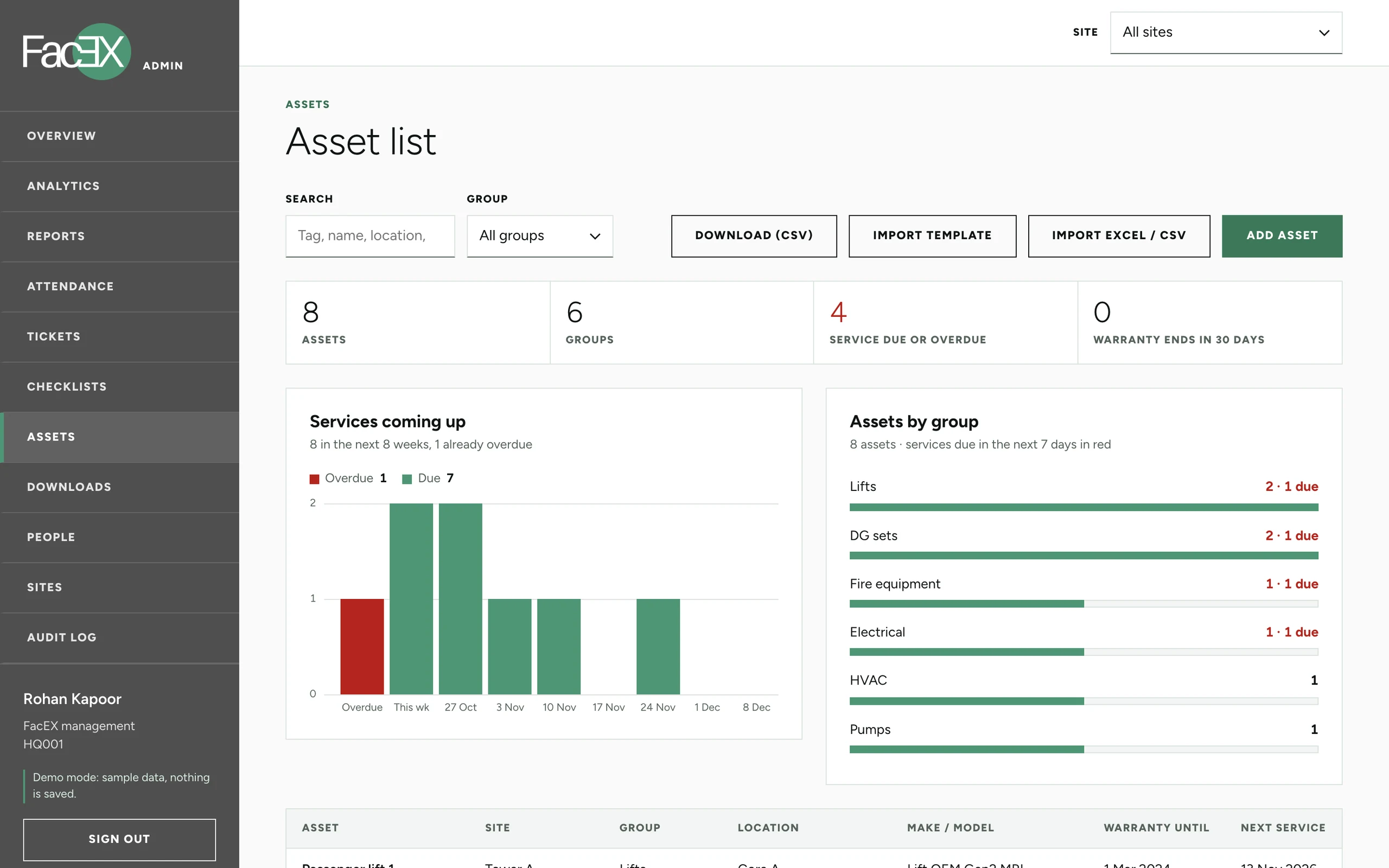
- AssetsTags, make, warranty and next serviceClient admin
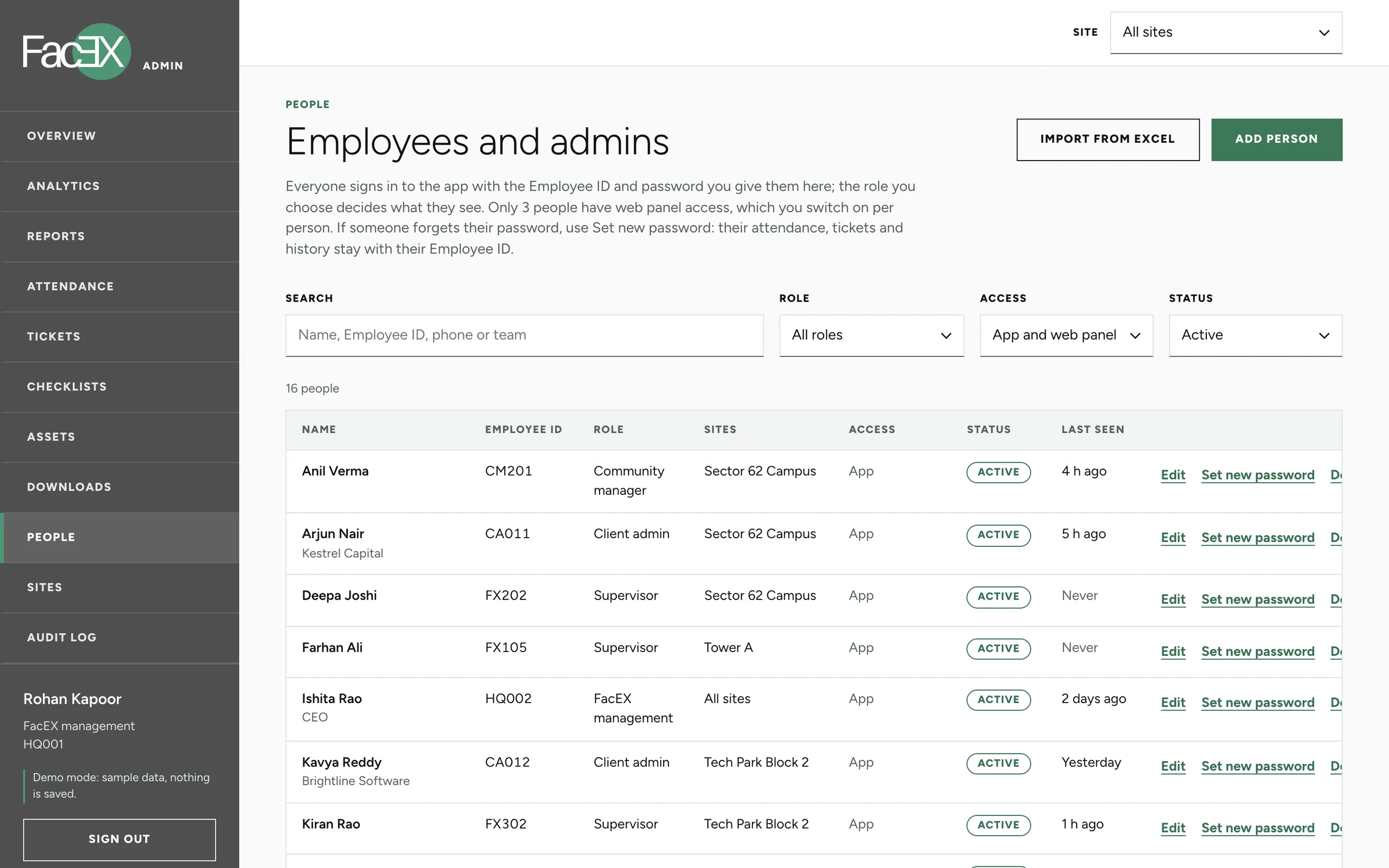
- PeopleAccounts one by one or from ExcelClient admin
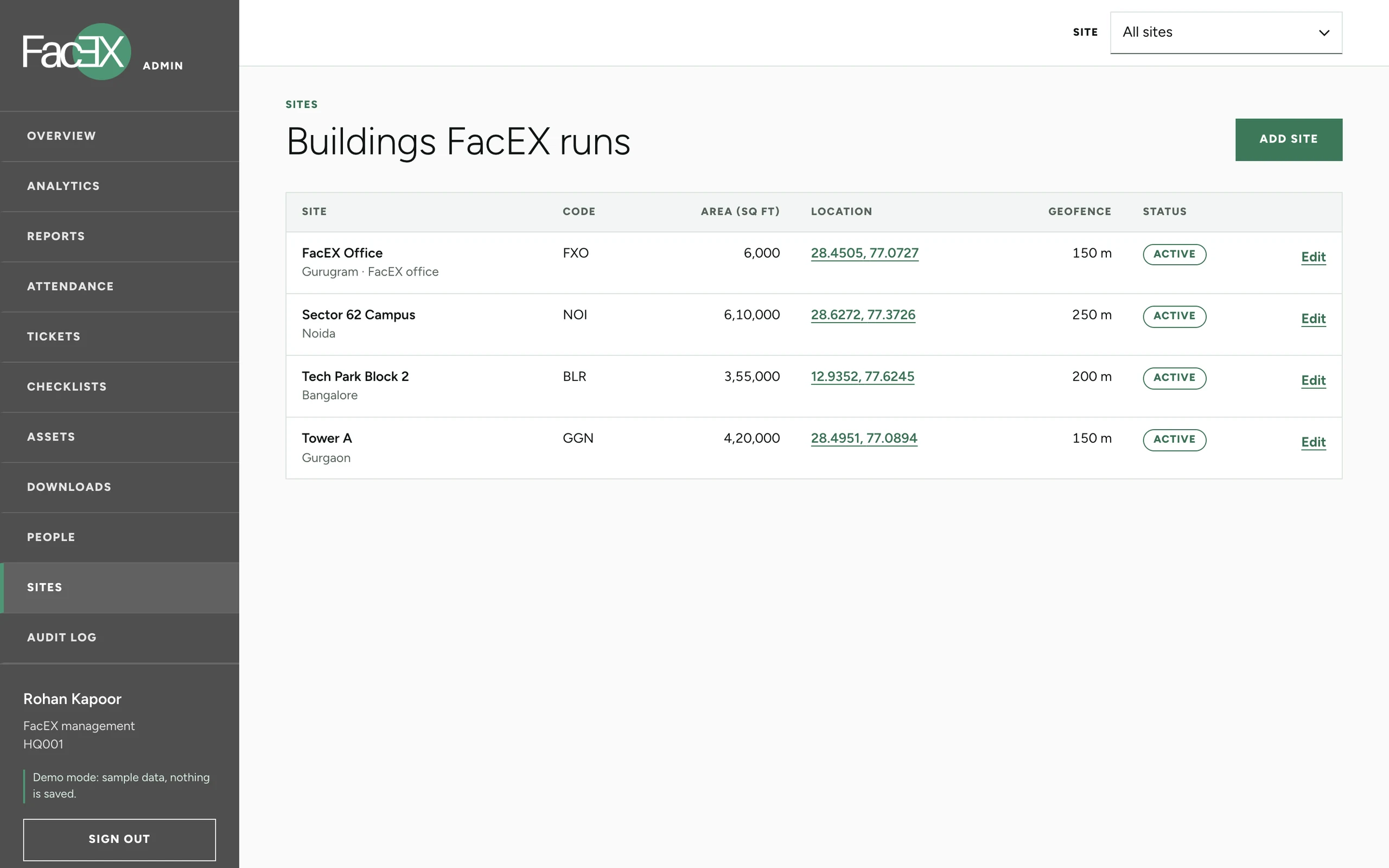
- SitesBuildings, codes and geofencesManagement
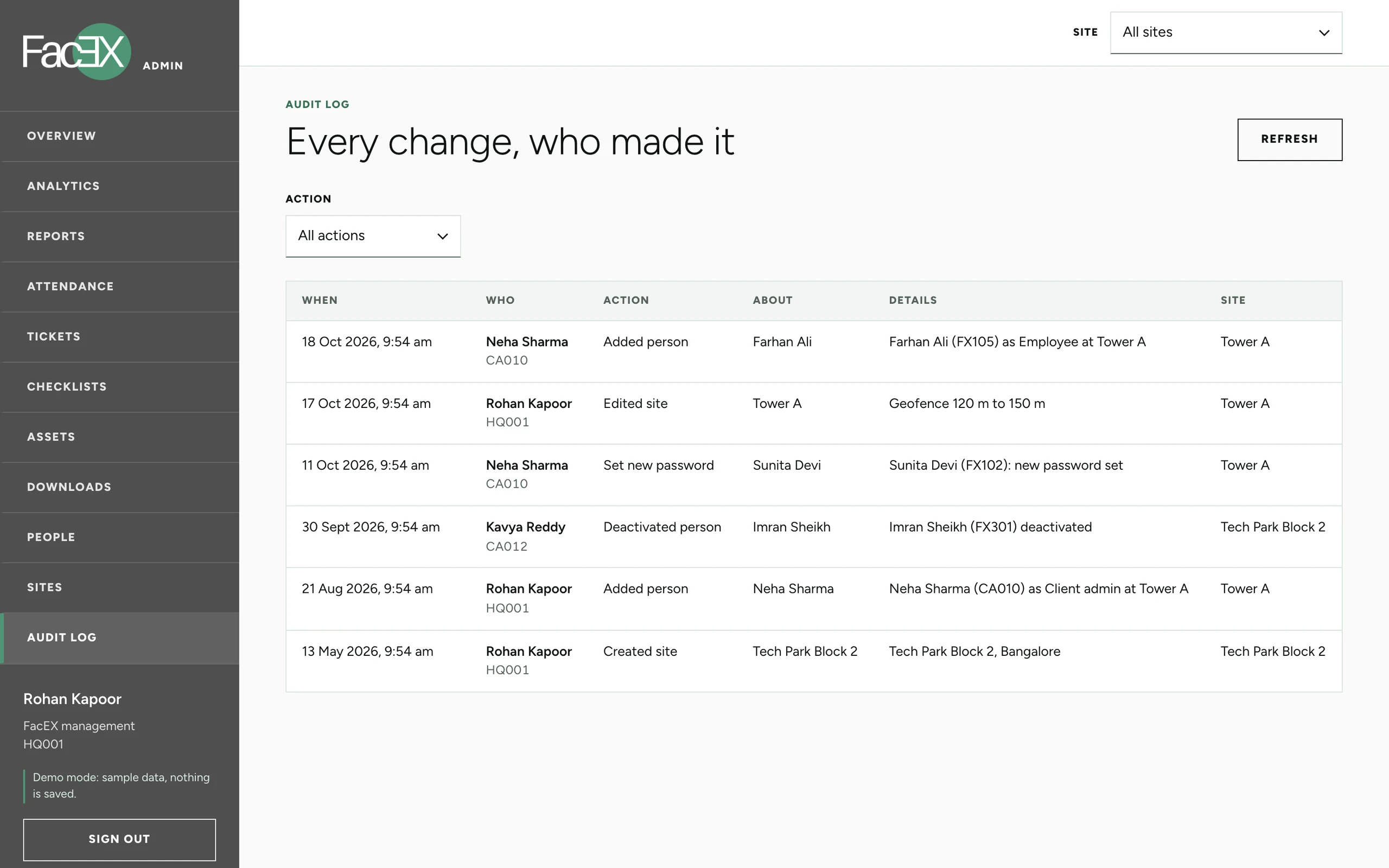
- Audit logWho changed what, and whenManagement
Panel flows
Three flows behind the panel
The rule for every flow: show the result before anything is saved, and leave a record of who did it.
Flow 01
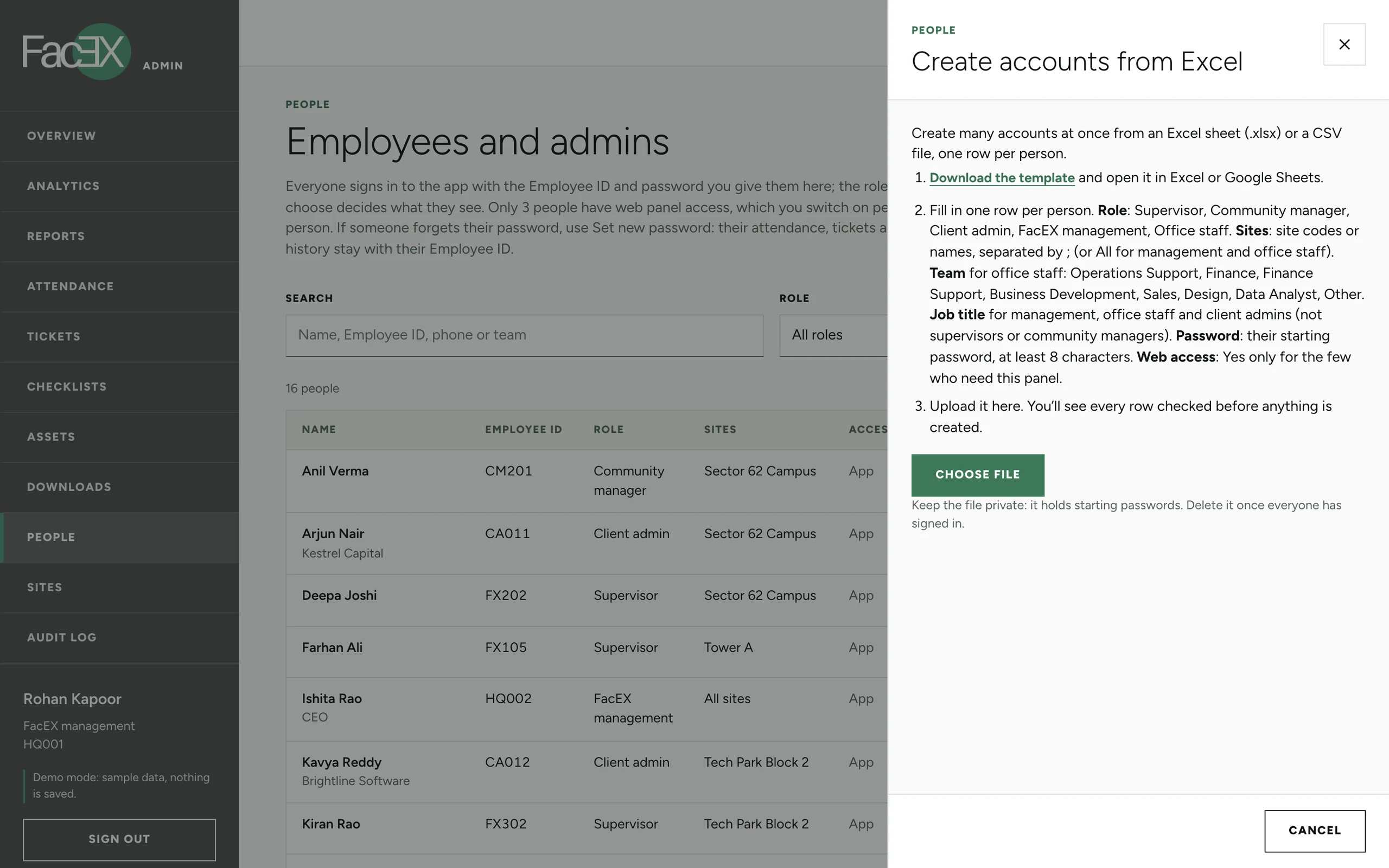
Fifty accounts from one sheet
Get a whole site's staff into the app in one sitting, without a single typo going live.
- 01 Client admin
Downloads the template
One row per person: Employee ID, name, role, sites, department, mobile and a starting password.
- 02 Client admin
Uploads the sheet
An .xlsx straight from Excel, or a CSV from Google Sheets.
- 03 Panel
Checks every row first
Nothing is created yet. Each row shows as ready, or with the reason it needs fixing.
- Unknown site
- Short password
- ID already exists
- 04 Client admin
Creates the accounts
One by one, with a progress bar. Existing IDs are skipped, so the same file can be uploaded again after fixes.
- 05 Panel
Hands back the results
A sheet of what happened to each row, and an entry in the audit log.
Flow 02
Who gets the web panel
Keep the panel to the few who need it, and make the database enforce it.
- 01 Management
Turns on web access
A switch on the person's account, off by default, offered only for client admins, management and analysts.
- 02 Panel
Records the change
Who switched it, for whom and when, in the audit log.
- 03 Site staff
Tries to sign in anyway
Is told "No web panel access: use the app", and nothing else loads.
- Rules refuse any write without access
Flow 03
From a late ticket to a spreadsheet
Spot the problem on screen, then hand the numbers to someone who will work them.
- 01 Panel
Flags the late ticket
Overview opens on it: how far past turnaround, and which level of the ladder holds it now.
- 02 Client admin
Follows it up
Opens the ticket with its timeline and photos, and changes the status.
- 03 Analyst
Downloads the month
Tickets, checklist tasks and attendance as CSV, with every time in India time, ready for Excel.
Panel screens
Every page of the panel, with sample data
Captured from the demo build, signed in as FacEX management.
The build
I'm a designer. So I learned to build it.
I learned Android development from YouTube: Kotlin first, then Jetpack Compose, one screen at a time against my own designs. For the backend I researched Firebase until I found a setup FacEX could run on the free plan, with no server to look after and no monthly bill.
Before any backend existed, the app ran in a demo mode on sample data, so FacEX could try every screen on a real phone and give feedback while the rest was being built.
- App
- Kotlin, Jetpack Compose, Material 3 re-themed to the brand
- Admin panel
- React, TypeScript and Vite on the same Firebase project; reads Excel in the browser
- Sign-in
- Employee ID and password; the role lives on the account
- Data
- Cloud Firestore, with security rules that check every write
- Tested
- 46 automated checks that the rules let the right people in
- Plan
- Firebase's free Spark plan: no card, no bill

(Hire me)
Need something like FacEX App for your company? Tell me what you're working on.
Hire Me